How to authenticate your JavaScript SDK using AWS Lambda & Serverless
Hello my friends, and welcome to a new story. Today we'll discuss the shortest method to use API key authentication for your JavaScript SDK using AWS Lambda.

Hello my friends, and welcome to a new story. Today we'll discuss the shortest method to use API key authentication for your JavaScript SDK using AWS Lambda.
The use case
So you have a JavaScript SDK (file) that you want to allow only clients with
valid key and valid
domain to actually be able to request and download the SDK file.
Let's say we want https://mydomain.com/sdk.min.js?key=XXXX to
work when requested from
client.com website, and of course when the key is valid, and
should send 401 unauthorized if the key is not valid, or the key is
valid, but from a different domain.
Checklist
Here's our checklist from start to finish:
- Install Serverless (if you haven't already).
- Initialize project.
- Create our Lambda.
- Try locally.
- Deploy.
1. Install Serverless
This method installs serverless globally, but you can also install it locally to your project only if you prefer.
npm install -g serverless
yarn global add serverless
2. Initialize project
First thing we need is to run the serverless CLI tool, it'll start an interactive process for creating a new project, it's pretty straightforward.
serverlessThis will initialize the interactive CLI of serverless for creating new project
The above command will start the interactive process of creating a new serverless project, I've included the steps below:
$ serverless
    $ Serverless: No project detected. Do you want to create a new one? (Y/n)
    $ Serverless: What do you want to make? (Use arrow keys)
    ❯ AWS Node.js
      AWS Python
    $ Serverless: What do you want to call this project?
    $ Project successfully created in 'lambda-sdk-auth' folder.
    $ You can monitor, troubleshoot, and test your new service with a free Serverless account.
    $ Serverless: Would you like to enable this? (Y/n)
    $ Serverless: Would you like to setup a command line <tab> completion? (Y/n)
The last 2 steps are optional.
Now we have a directory called lambda-sdk-auth which include our new
project.
Files tree
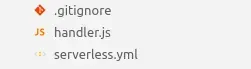
You should now have 3 files in your project:
-
.gitignoreWhich is used to instruct git to exclude some paths likenode_modules&.serverless. handler.jsWe'll write our lambda function here.-
serverless.ymlThis file include all of our serverless configurations.
3. Create our Lambda function
Let's start by updating the default serverless config, replace serverless.yml's contents with the following:
service: lambda-sdk-auth

provider:
  name: aws
  runtime: nodejs10.x

  stage: dev
  region: us-east-1

functions:
  sdk:
    handler: handler.default
    events:
      - http:
          path: sdk.min.js
          method: get
Let me explain what we've got here:
- Service: This will be our project name, it'll be used in the deployment's CloudFormation template.
- Provider: The cloud provider, serverless supports Azure, Google Compute Cloud and AWS, we're using AWS in this example, and NodeJS 10 as a runtime (choose earlier during initializing project).
- Stage: The API Gateway stage.
- Region: The region in AWS where you wish to deploy your Lambda to.
- Functions: List of our Lambda functions, we only have 1.
- Function.sdk: This is our Lambda function name.
-
Function.sdk.handler: The path to our Lambda function in the project, the
.defaultpart of the value means it will look formodule.exports.defaultin that file. - Function.sdk.events: Events list for this function, we can have different types of events like HTTP or a scheduled/cron. We're using HTTP, which is the only suitable one for our use case.
- Function.sdk.events.http.path: The URL structure for your Lambda.
-
Function.sdk.events.http.method: The HTTP request method, we're using
GET.
Before writing our Lambda code, there's 1 last step we need to do, is to
install serverless-offline node module, which will make local development
easier by allowing us to invoke our Lambda from the browser, to best simulate AWS
environment.
Install serverless-offline:
$ npm install serverless-offline -DInstall serverless offline as a dev dependency via npm
Or via Yarn:
yarn add serverless-offline -DInstall serverless offline as a dev dependency via yarn
Finally update serverless file to include plugins section, with this serverless plugin:
service: lambda-sdk-auth

plugins:
  - serverless-offline

provider:
  name: aws
  runtime: nodejs10.x

  stage: dev
  region: us-east-1

functions:
  sdk:
    handler: handler.default
    events:
      - http:
          path: sdk.min.js
          method: get
Now let's do 2 primary things:
- Create our SDK file.
- Create the lambda function.
Create a file called sdk.js in the root of your project, and add anything
to it, example:
const test = () => 123;Our SDK's contents
Now let's move on to writing our function's logic; Let's start by replacing our Lambda file with the below contents, then I'll explain it in details:
const fs = require('fs');

module.exports.default = async (event, context) => {
  // Get the "key" from request query params
  const queryParams = event.queryStringParameters;
  const key = queryParams && queryParams.key;

  // Return 401 if key is not passed in GET query params
  if (!key) {
    return {
      statusCode: 401,
      body: JSON.stringify(
        {
          error: 'Key is missing'
        }, null, 2),
    };
  };

  // Get requesting domain
  const clientDomain = event.headers.Origin;

  // This is a static mock for allowed clients.
  // You should normally get this from your database
  const allowedClients = [
    {
      domains: ['devspedia.com'],
      key: 'example-key'
    }
  ];

  // Check if client exists using it's unique key
  const client = allowedClients.find(client => client.key === key);

  // If client is not found, return 401 as the key is not authrorized
  if (!client) {
    return {
      statusCode: 401,
      body: JSON.stringify(
        {
          error: 'Key not registered'
        }, null, 2),
    };
  }

  // Check if the domain exists within the client's allowed
  // domains
  const validDomain = clientDomain && client.domains
    .find(domain => domain === clientDomain.split('://')[1]);

  // If the request if coming from a domain that was not
  // allowed for this key, return 401
  if (!validDomain) {
    return {
      statusCode: 401,
      body: JSON.stringify(
        {
          error: 'Domain not registered for this key'
        }, null, 2),
    };
  }

  // Read the SDK javascript file's contents
  const sdk = fs.readFileSync(`${__dirname}/sdk.js`);

  // Return the file's contents with correct headers
  // and transform the sdk buffer array to a string
  return {
    statusCode: 200,
    headers: { 'Content-type': 'text/javascript' },
    body: sdk.toString(),
  };
};
hander.js
Here's what we did in brief points:
- Get the "key" from request query params.
- If key is not passed in query params, we'll return 401 unauthorized.
- If above step passed, we'll get the requesting domain.
- Then check if this domain is allowed for this requesting key.
- If not allowed, we'll return 401 unauthorized.
-
If allowed, we read the sdk file's contents using the native node
fsmodule. - Finally return the file's content after setting the correct headers. Viola :)
4. Try locally
Now, to try this locally, we'll use cURL from the terminal. Make sure you're inside the project's directory, and then run:
serverless invoke local -f sdk -d "{"headers":{"Origin":"https://devspedia.com"},"queryStringParameters":{"key":"example-key"}}"The response should be:
{
    "statusCode": 200,
    "headers": {
      "Content-type": "text/javascript"
    },
    "body": "const test = () => 123;"
}
Lambda response
Now, when this is requested from the browser, the browser will only render the body part of this response, and in this case, it's our SDK's content.
To actually simulate this in the browser, let's run serverless offline. Make sure you're inside the project directory, and then run:
serverless offlineThen in the browser, you can open devspedia.com and open up browser's developer tools/console, then make a request via fetch:
fetch(
  'http://localhost:3000/sdk.min.js?key=example-key'
).then(
  res => res.text()
).then(
  res => console.log(res)
);
fetch request the SDK
You should see const test = () => 123; in the logs, which is the
file's contents.
5. Deploy
Deployment is easy, few steps you'll need to make:
- Install AWS CLI (https://docs.aws.amazon.com/cli/latest/userguide/cli-chap-install.html).
-
Run
aws configurein your terminal, and add your authentication info. -
Finally, from the root of your project, run
serverless deploy.
That's it, thanks for reading devspedia, I love you, and I'll see you the next time :)
About this story
This article was written by Gen-AI using OpenAI's GPT-3. Verify technical guidance before using it in production systems.